
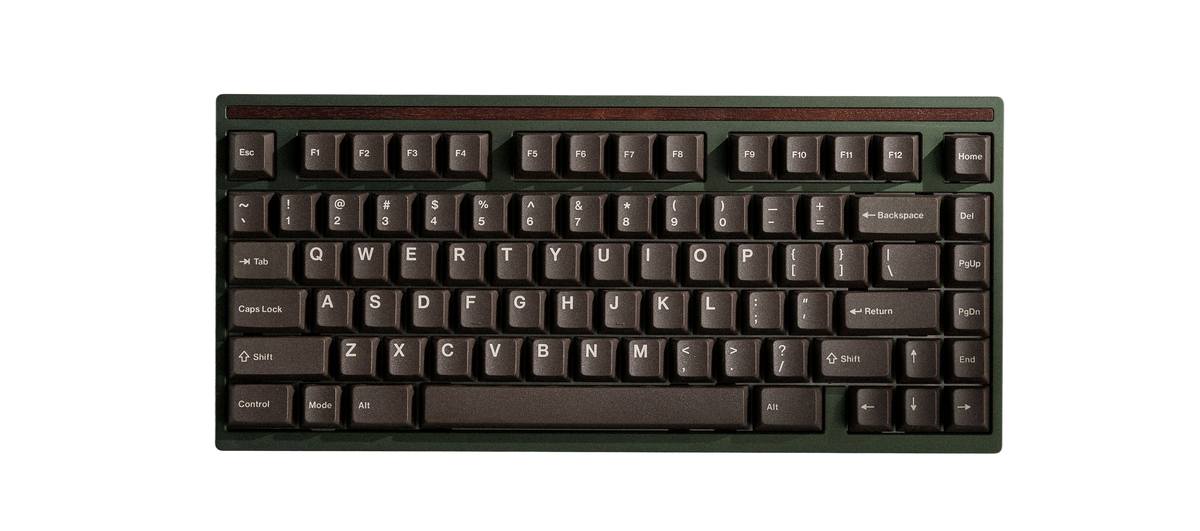
2022 Sonnet Build Guide
Build Time: 45-90 minutesParts
- Case
- PCB
- Plate
- Daughterboard
- Plate Caps
- Screwdriver
- Silicone Feet
- Fastener Pack
- Keycap & Switch Puller
-
Stabilizers
Not Included
-
Switches
Not Included
-
Keycaps
Not Included
-
Foam Kit
Not Included
-
Stabilizer Lube Syringe
Not Included
Preparation
Check that you have the required parts and tools listed above. We recommend the following steps to get the most out of your Encore.
Lubing Stabilizers: This reduces the rattling sounds that stock stabilizers produce. We have our own video tutorial available here.
Lubing Switches (optional): This dampens the sound of your switches and increases their smoothness. Lubing switches is a time-consuming process, but the results are noticeable. Taeha Types and Alexotos have video tutorials available for this.
Mounting Styles
The Sonnet supports two different internal mounting styles to fine-tune your typing experience.
Isolated Top Mount: Custom-molded silicone plate caps isolate the plate and fasteners from the top case.
Stack Mount: A custom-molded silicone base supports the plate/PCB assembly against the top case (requires silicone base).
Fasteners

There are up to seven different types of fasteners used during this build. This diagram can be referenced to confirm that you are using the correct ones. Use the included H1.5 hex bit for M2 fasteners and H2.0 bit for M2.5/M3 fasteners.

Step 1: Test PCB
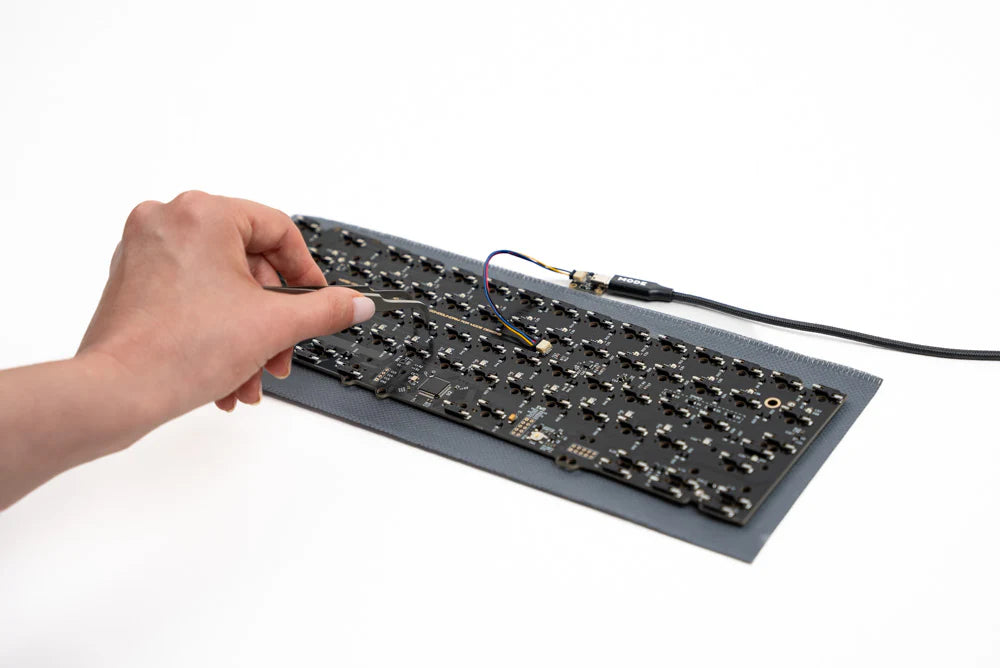

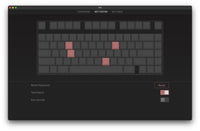
Do not skip this step; we cannot guarantee a replacement PCB that was not tested prior to assembly.
-
- Open VIA, navigate to the Key Tester tab, and enable Test Matrix mode.
-
- Place the PCB facedown, connect the daughterboard to the PCB, and plug it in.
-
- Touch the ends of your tweezers to the metal contacts under each switch position, lighting up each key in VIA. Note that the function key may not light up.
-
- In the rare event that keys do not light up, pause your build here and contact support@modedesigns.com.
Step 2: Install Feet

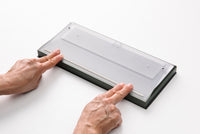
-
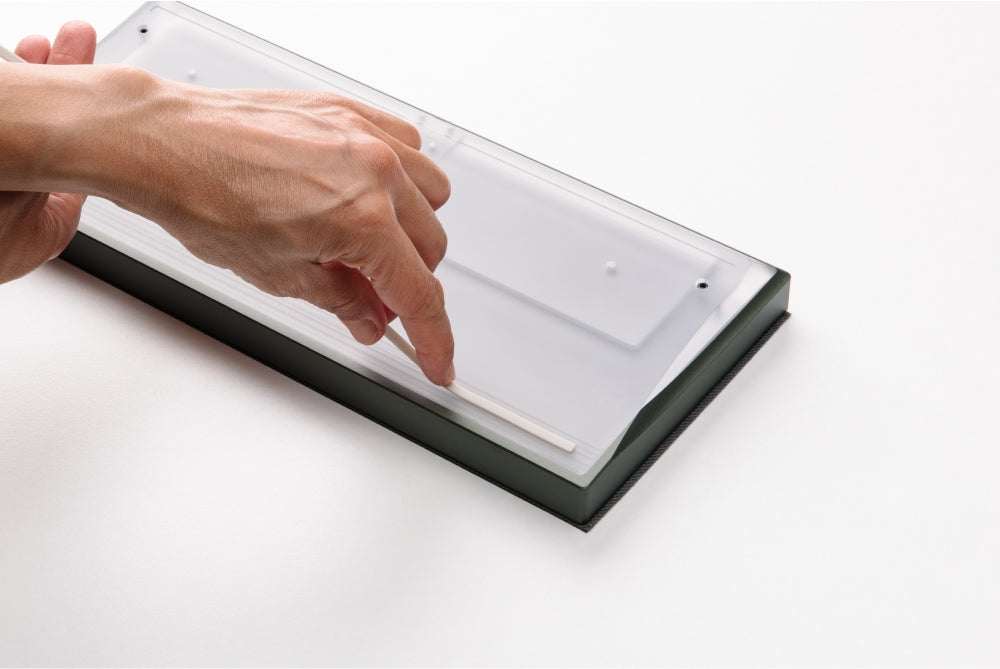
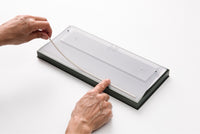
Align one end of the foot in one corner of the recessed channel, then gently lower the strip into place. Take care not to stretch the foot.
-
Press on the feet to ensure they are properly adhered, smoothing out any raised areas.
-
If the foot extends past the recess, it has been stretched. Attempt to squeeze it back into the recess rather than cutting it.
Step 3: Detach Bottom Case
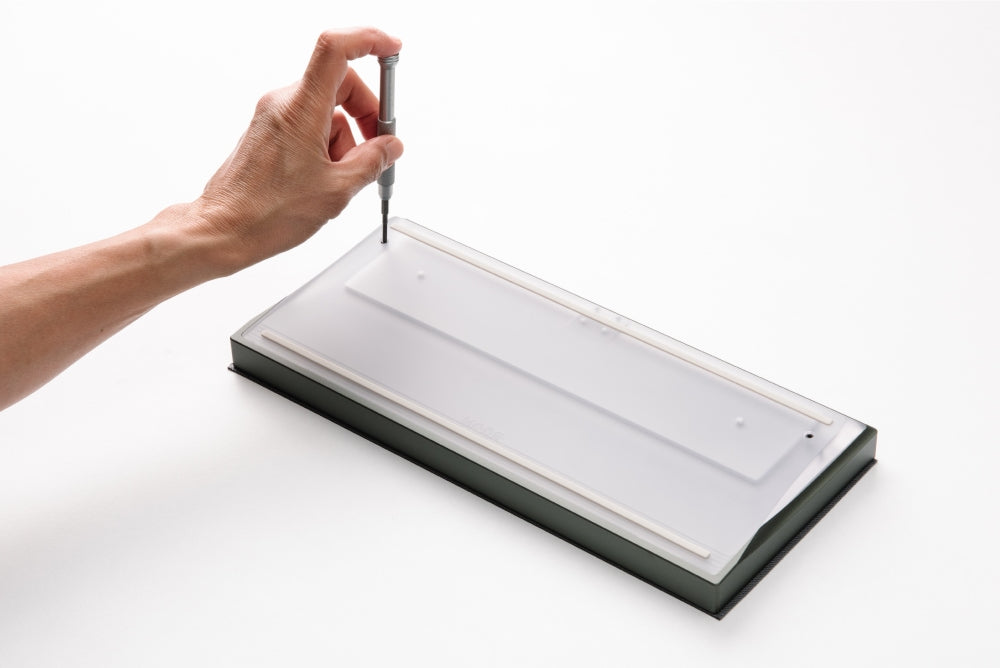

-
Carefully place the Sonnet facedown.
-
Use the provided H2.0 hex bit to remove the case fasteners and separate the bottom case from the top case.
Step 4: Attach Daughterboard to Bottom Case
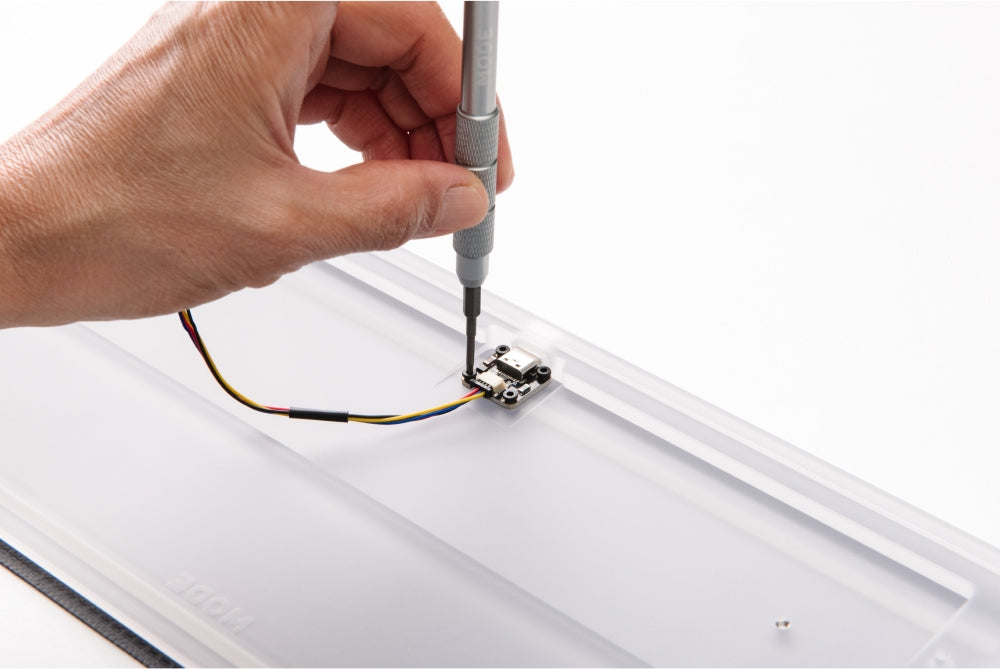

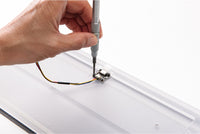
-
Disconnect the daughterboard cable from the PCB.
-
With the cable connected to the daughterboard, fasten it into the bottom case using the M2x3 fasteners (four total).
-
Take care to not overtighten the fasteners, or you may damage the daughterboard.
Step 5: Install PE foam sheet (optional)
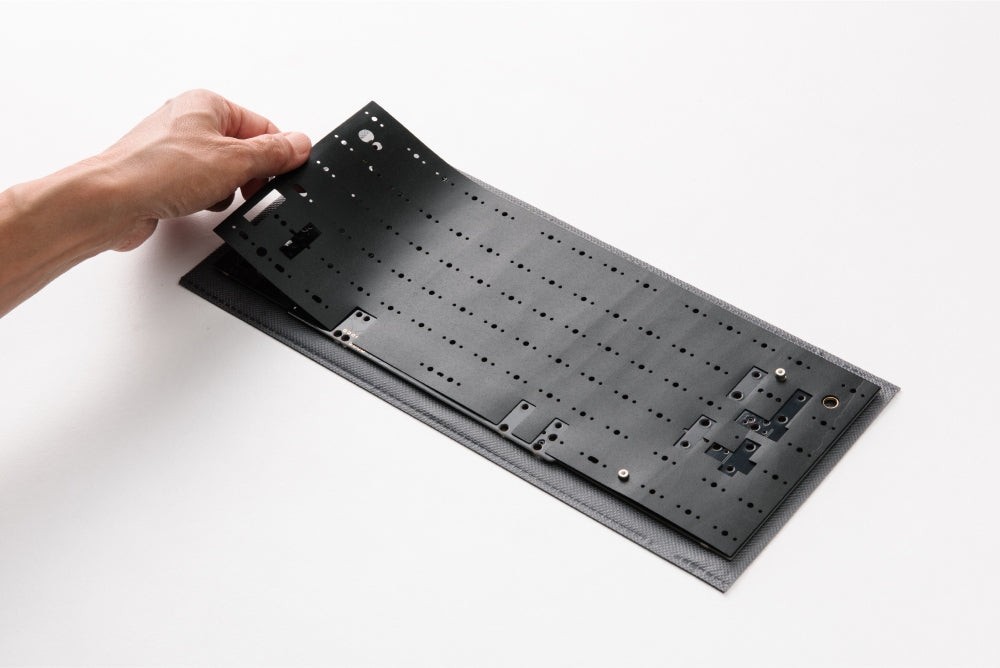

-
If you plan to use the optional PE foam, lay it on top of the PCB now.
Step 6: Install Stabilizers
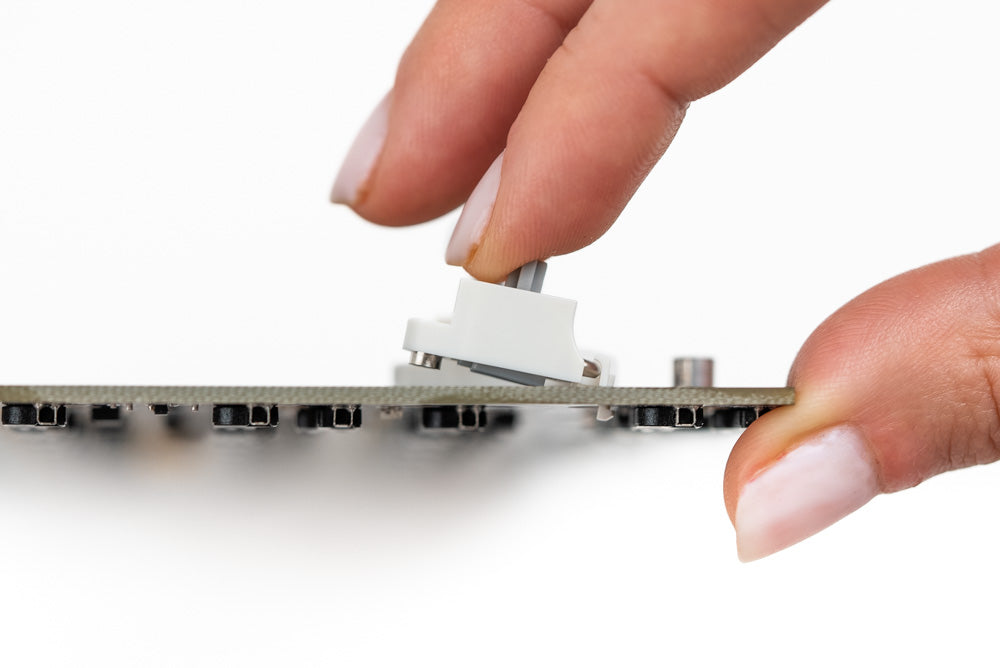

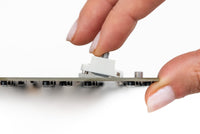
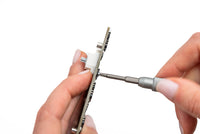
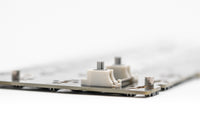
Stabilizers ensure that long keys actuate properly, no matter where you press. The stabilizer wire you need for the spacebar will depend on your choice of layout.
-
Insert the non-threaded end of the stabilizer into the larger cutout on the PCB, then pivot the threaded ends into place.
-
Ensure that your stabilizers are completely flat on the PCB before screwing them in.
-
While bracing the front of each stabilizer, screw it into place from the underside of the PCB. Repeat for the remaining stabilizers.
Step 7: Install Switches

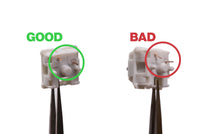
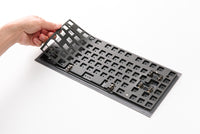
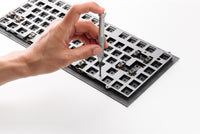
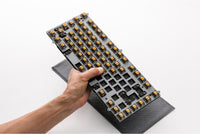
-
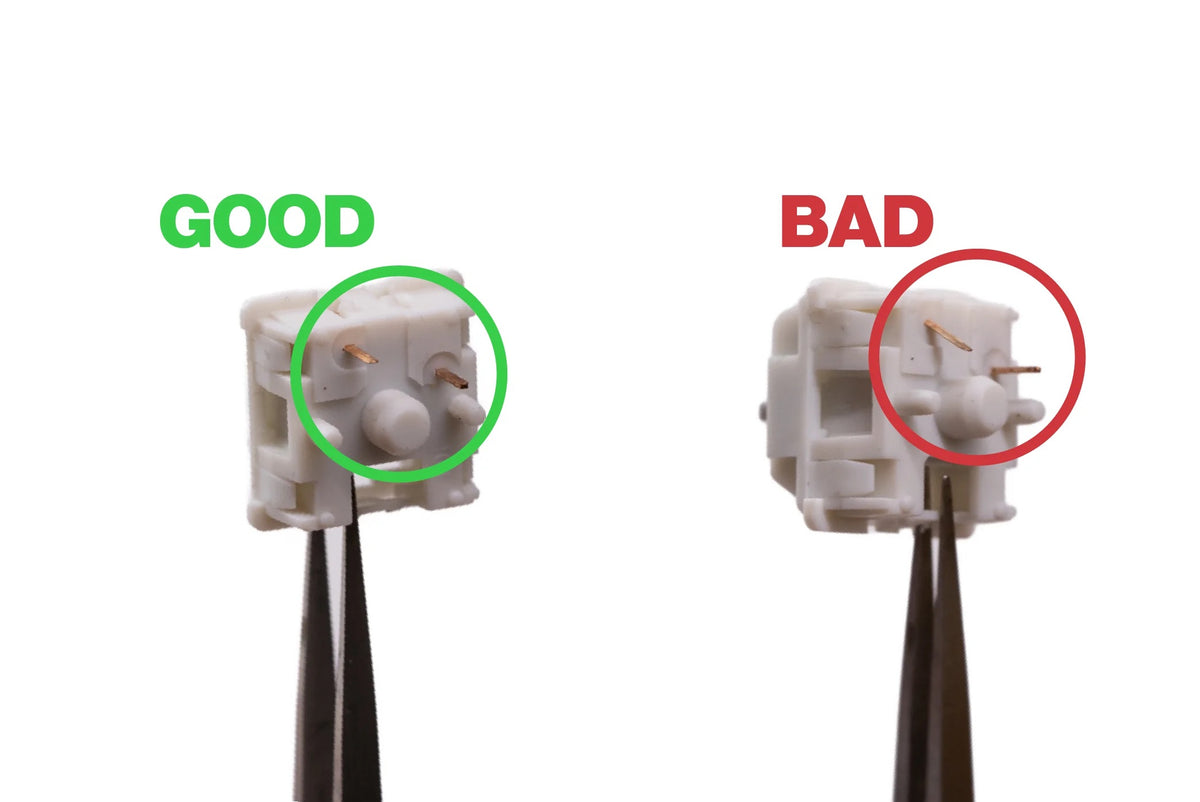
Before installing your switches, inspect them to ensure the two metal pins on the underside of each switch are straight. Straighten all pins with tweezers if any are bent.
-
If you plan to use the optional plate foam for a more dampened sound, lay it on top of the PCB now.
Insert switches into the plate/PCB. Take care to brace the back of the hotswap socket with a finger while pushing the switches into place with your thumb. Do not apply downward pressure to the surface of the plate itself.
-
If you have a solder PCB, solder your switches now.
Step 8: Check Switch Installation
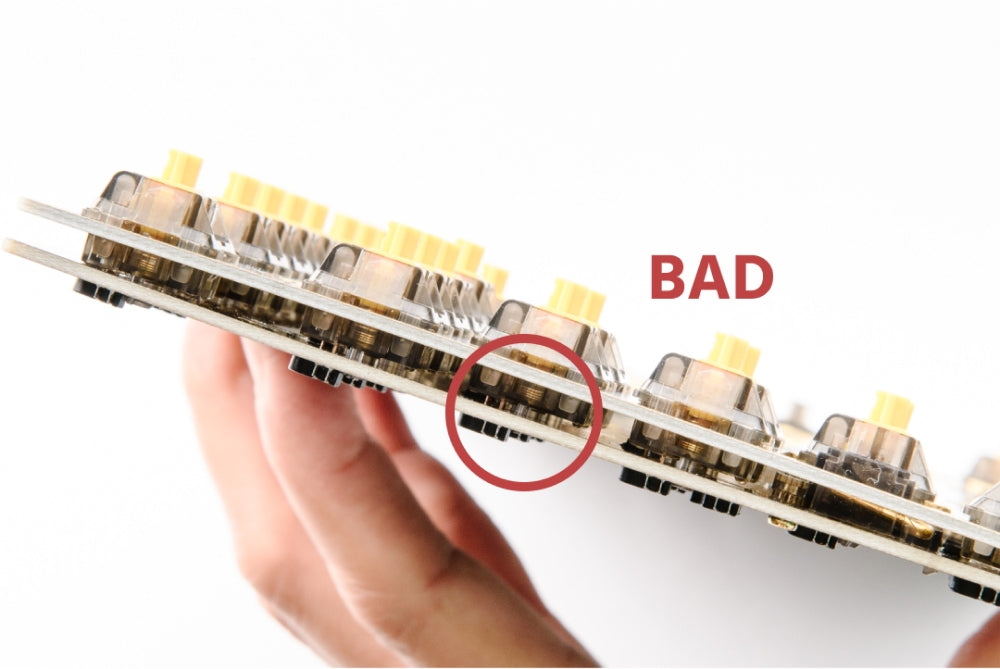


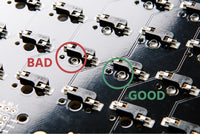
Switches that are not properly installed can cause alignment issues when the case is closed.
-
- Check that the plate is not sagging below the tops of the switches.
-
- Check that each switch pin is fully seated into the PCB.
Step 9: Install Plate Caps

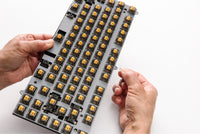
-
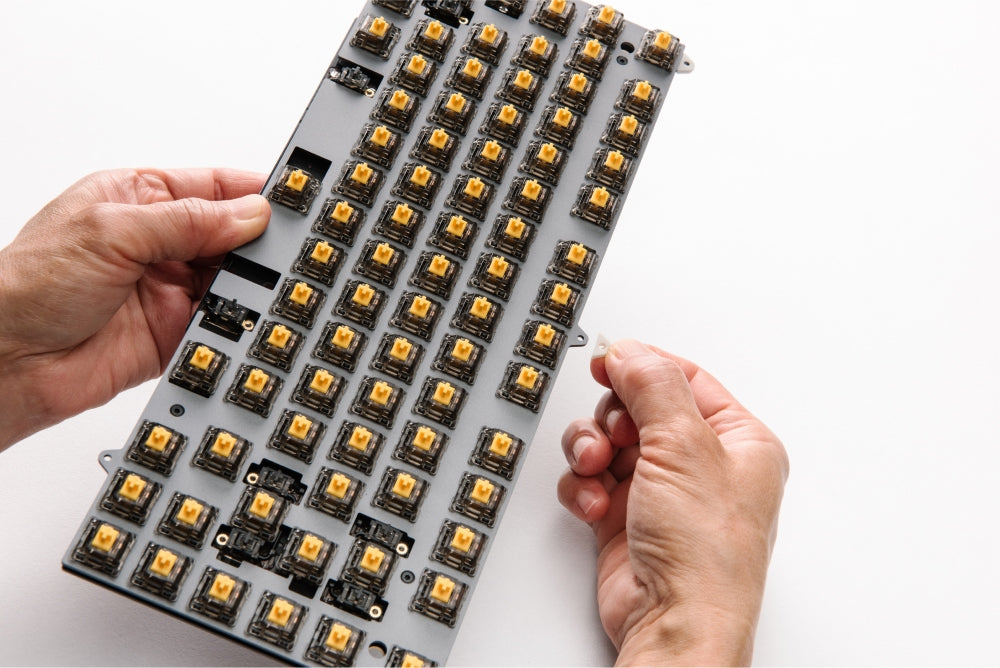
Slide the silicone plate caps onto the plate tabs (five total).
Step 10: Install Accent
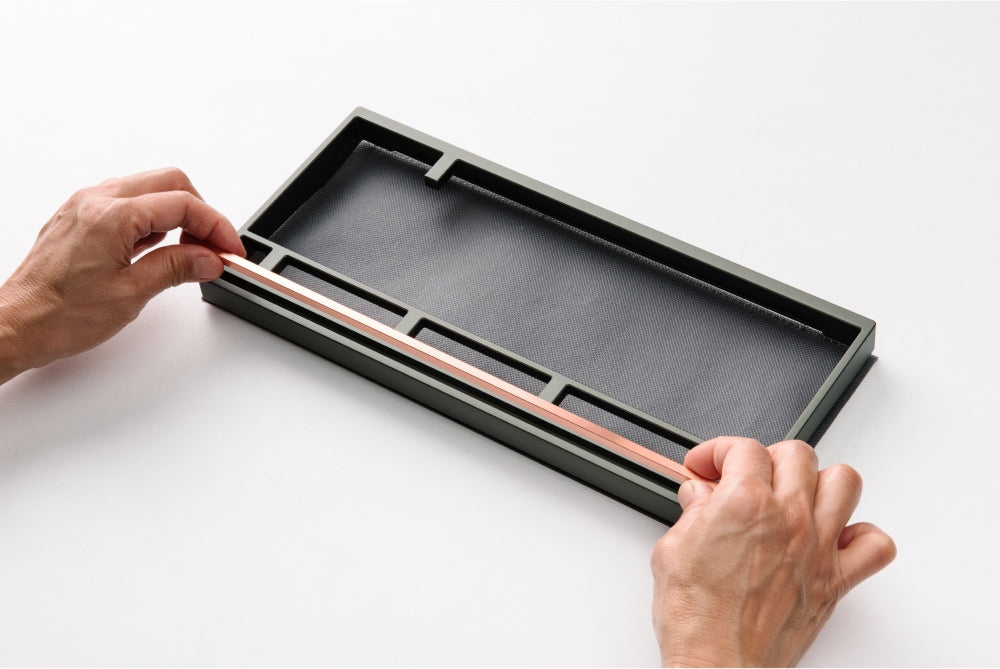

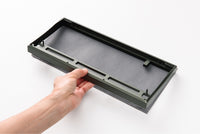
-
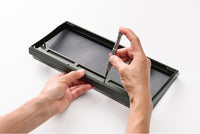
Gently lower the accent into the recess in the top case.
-
Flip the top case over, supporting the accent from the top side. Screw in the accent to the top case using the M2x10 fasteners (four total).
Step 11: Install Internal Weight (Isolated Top Mount)

-
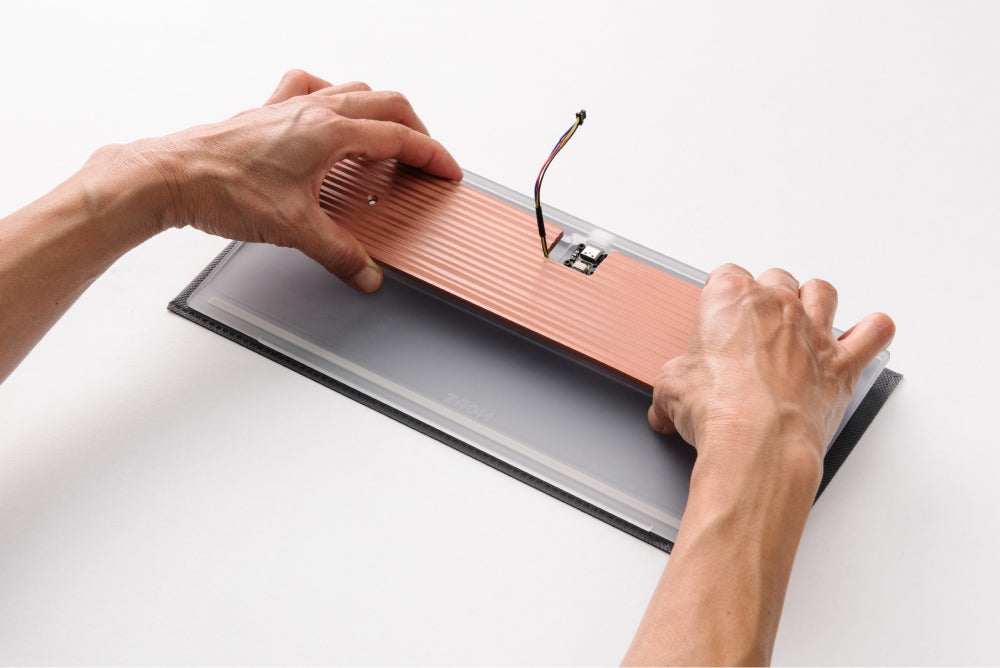
Gently lower the internal weight into the recess in the bottom case.
-
Secure the weight to the bottom case using the shorter M3x5 flat head fasteners (two total)
Step 12: Install Internal Weight and Silicone Base (Stack Mount)
-
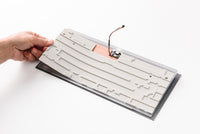
Gently lower the internal weight into the recess in the bottom case.
-
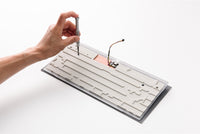
Lay the silicone base on top of the internal weight, aligning it with the weight’s screw holes.
-
Secure the silicone base and weight to the bottom case using the longer M3x7 flat head fasteners (two total)
Step 13: Attach Plate/PCB to Top Case (Isolated Top Mount)

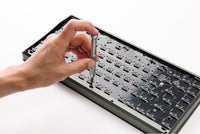
-
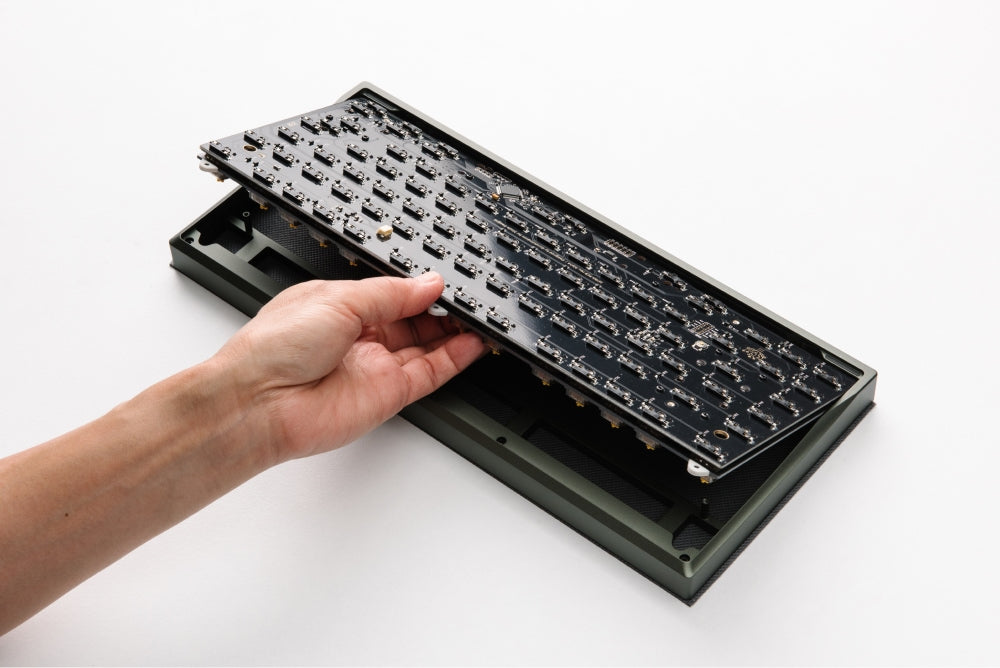
Place the top case facedown.
-
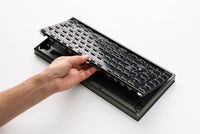
Gently lower the plate/PCB assembly into the top case.
-
Secure the plate to the top case via the tabs along the top and bottom edges with the M2x5 fasteners (five total).
-
Take care to avoid over tightening fasteners such that they go past the silicone plate caps.
Step 14: Insert Plate/PCB into Top Case (Stack Mount)
-
Place the top case facedown.
-
Gently lower the plate/PCB assembly into the top case.
Step 15: Attach Daughterboard Connector

-
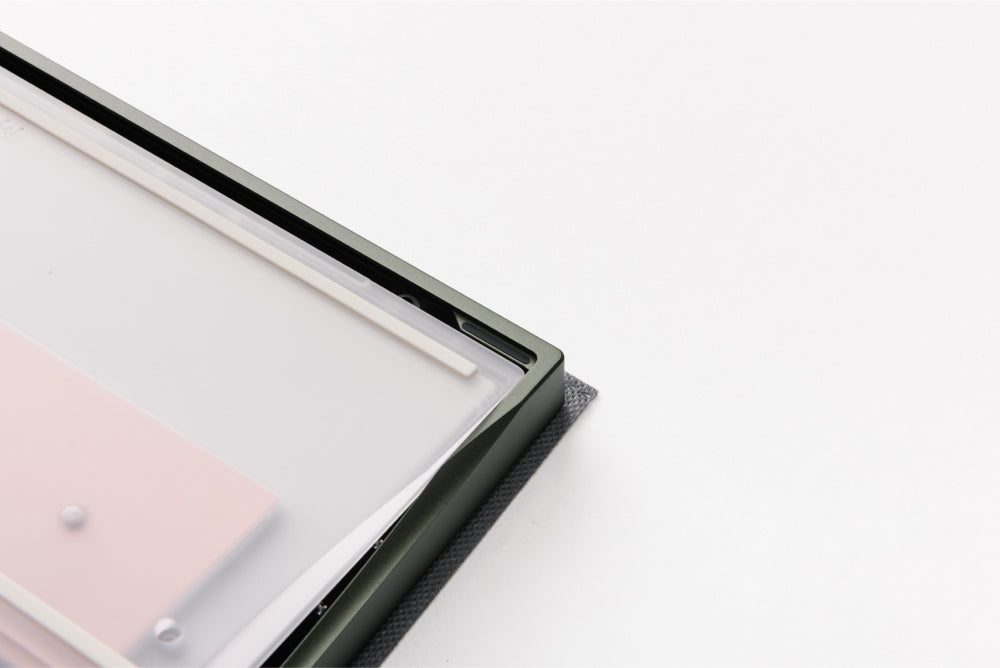
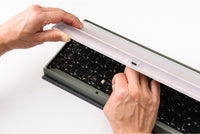
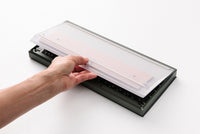
Hold the bottom case firmly in one hand and align it with the notch on the bottom edge of the top case.
-
While still holding the bottom case, use your other hand to attach the daughterboard cable to the PCB.
-
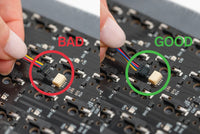
Check the orientation of the daughterboard cable and ensure that it is fully plugged in. It should not come loose if inserted properly.
-
Close the bottom case onto the top case, ensuring that the cable sits inside the recessed area of the bottom case.
Step 16: Secure Bottom Case

-
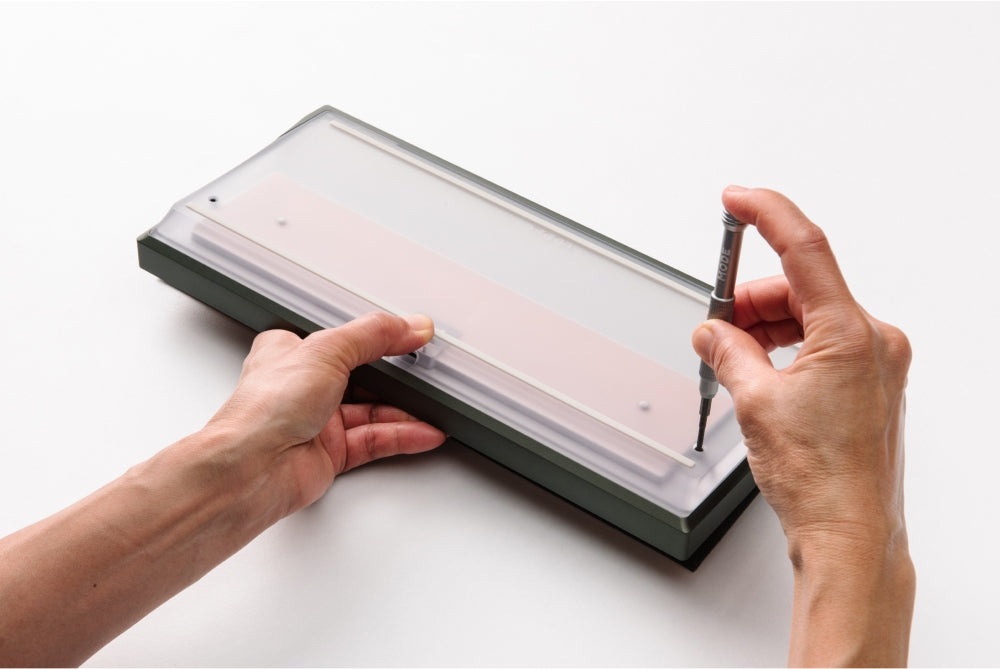
Fasten the bottom case to the top case with the M2.5x12 fasteners (two total).
Lightly tighten the fasteners as needed such that the top and bottom case are flush. Do not overtighten.
Step 17: Install Keycaps

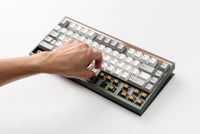
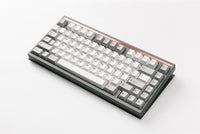
-
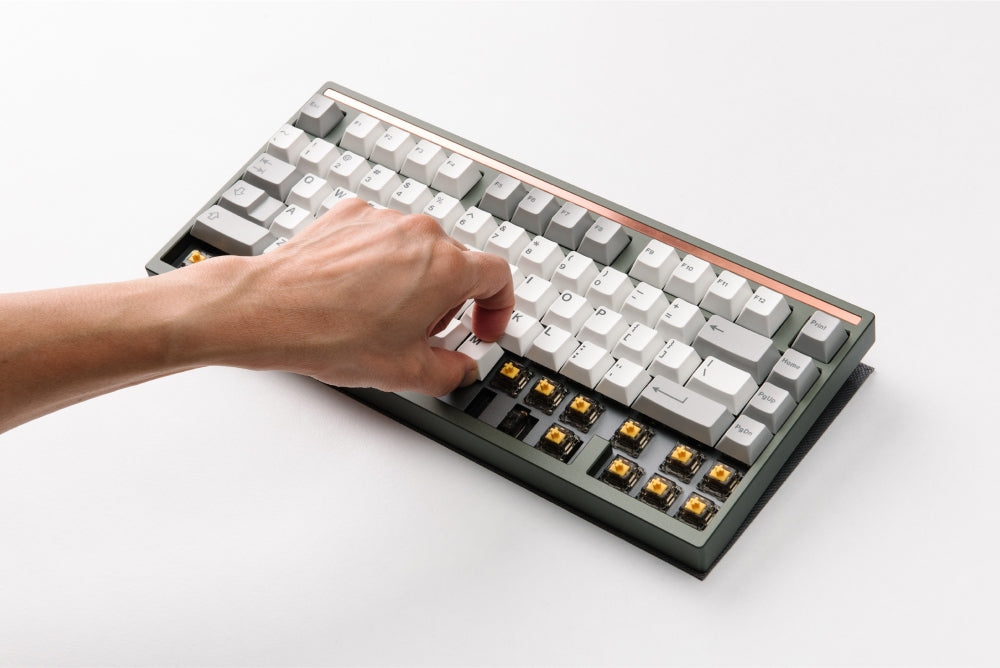
Install your choice of MX-compatible keycaps.
Step 18: Tune Stabilizers
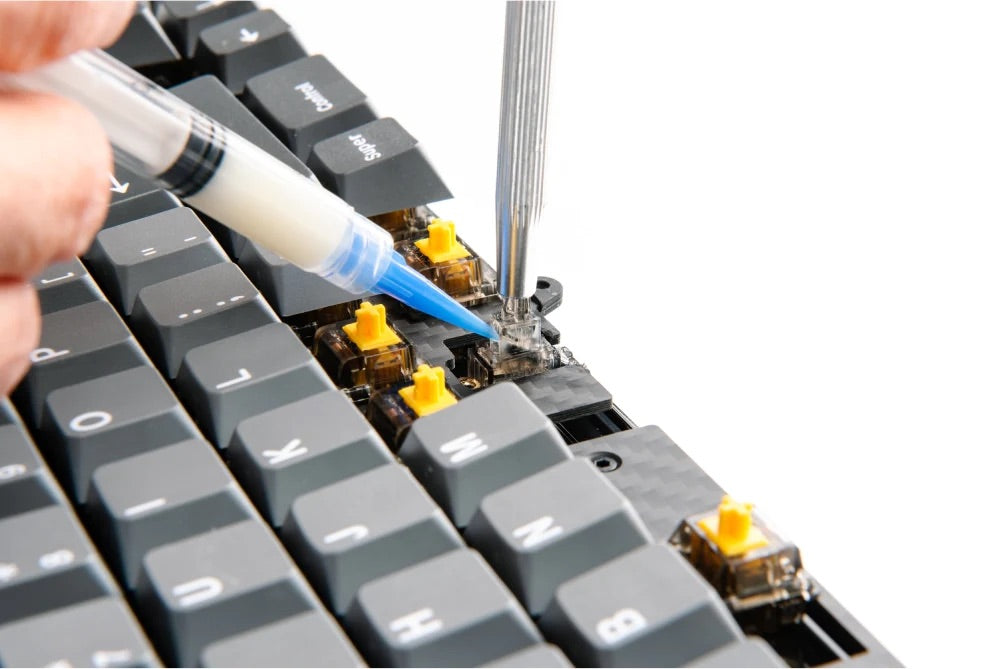

-
- Test the stabilized keys for any undesired rattling noises.
-
- If rattle is detected, lift the corresponding stem up and inject lube into the slider around the ends of the stabilizer wires.
Step 19: Set macOS layout
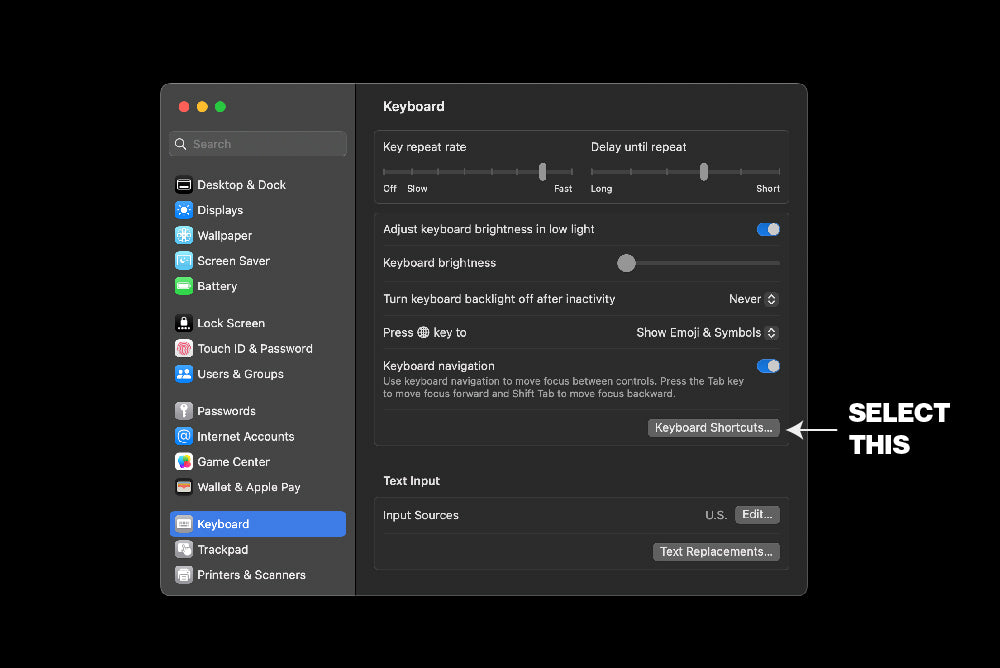

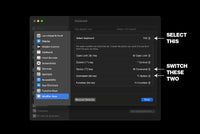
If you are using your Encore with a Mac, switch the Command and Option key positions in System Preferences. You will only need to do this one time, and the positions will be correct for both Mac and PC usage.
Step 20: Program Keymap in VIA/QMK
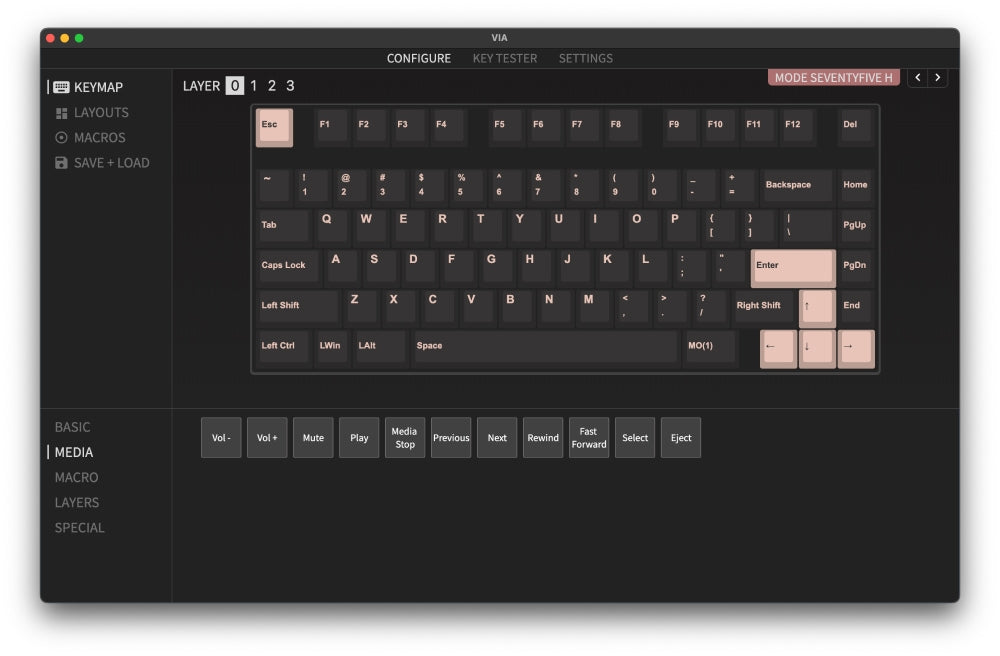

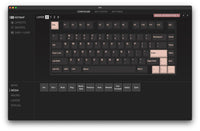
The Encore is fully compatible with VIA and QMK. You can use the graphical interface of VIA to program any of the keys or layers on the Encore.
-
If using QMK, you may enter bootloader mode by pressing the physical reset button on the board or pressing Fn + Esc.
-
If any of the keys do not actuate properly, it may be due to a bent switch pin during installation. Remove that keycap and switch using a keycap/switch puller. If any metal pins are bent, straighten them with a pair of tweezers.
Happy Typing
We hope you had a smooth build experience and would love to see the end result! Post your build in our photos channels on Discord or tag us on Instagram @modekeyboards. If you have any feedback you'd like to share with us, you can reach out to hi@modedesigns.com.